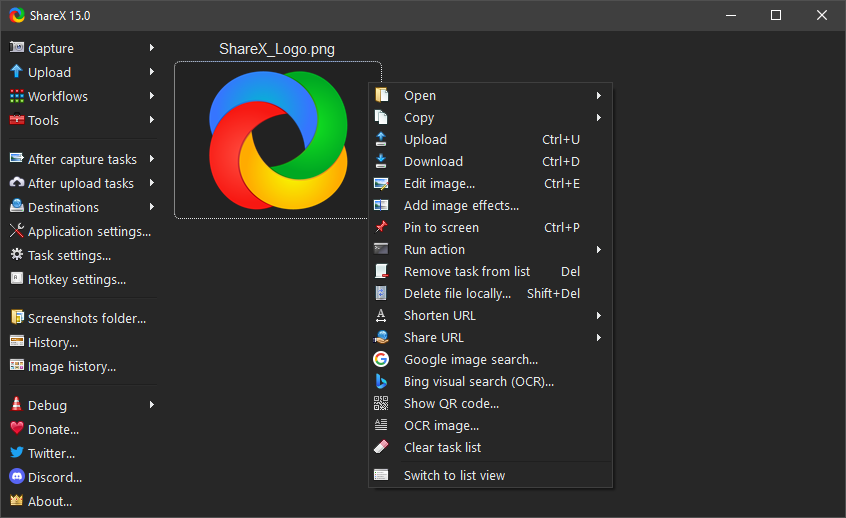
Capture-first design
Fullscreen, window, region, freehand, scrolling capture, and more — with optional delay and cursor inclusion for tutorials.
 ShareX
Capture · Record · Ship
— built for power users
ShareX goes beyond Print Screen: region capture, scrolling screenshots, GIFs, video, OCR, and automated upload workflows. This page summarizes what it does, how people use it in real projects, and how to fix the issues newcomers hit most often.
Note. Independent resource — always verify installers and updates with a source you trust before you run them.
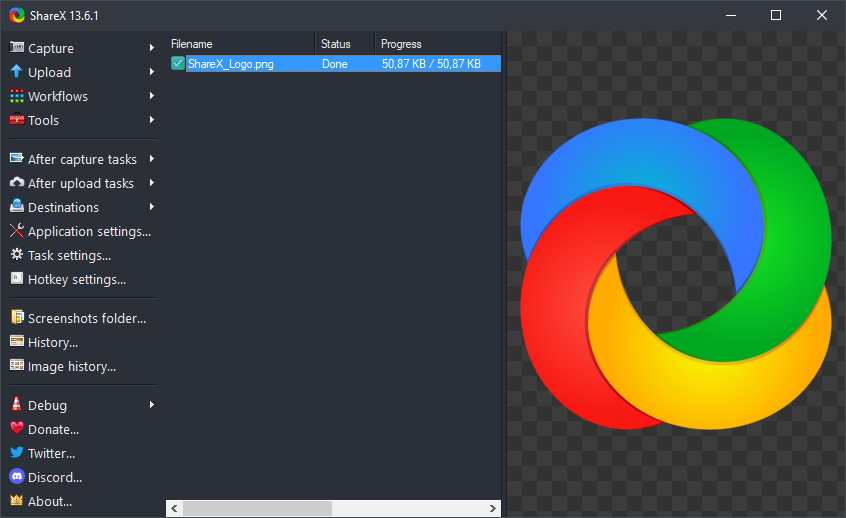
Fig. 1 — ShareX main window (recent captures).
ShareX is a long-standing Windows productivity tool for capturing the screen, recording video, and sending results to dozens of destinations. Unlike many “screenshot tools” that only save files locally, ShareX is built around workflows: after capture, you can run steps automatically — watermark, resize, upload, shorten URLs, copy a link to the clipboard, or run a custom command.
Fullscreen, window, region, freehand, scrolling capture, and more — with optional delay and cursor inclusion for tutorials.

Per-task hotkeys, “after capture” tasks, and folder watching help you repeat the same pipeline hundreds of times a day without thinking.

Active Discord, Reddit, and community write-ups mean obscure edge cases are often documented — great when you’re integrating uploads or custom scripts.
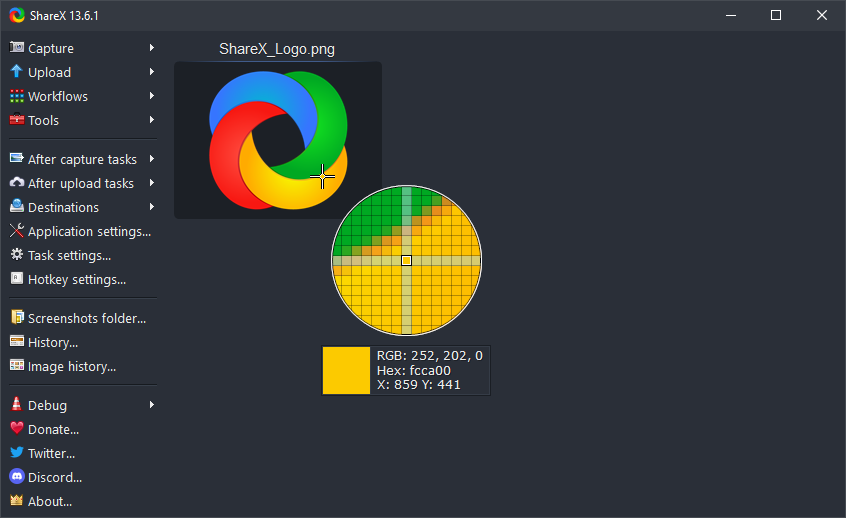
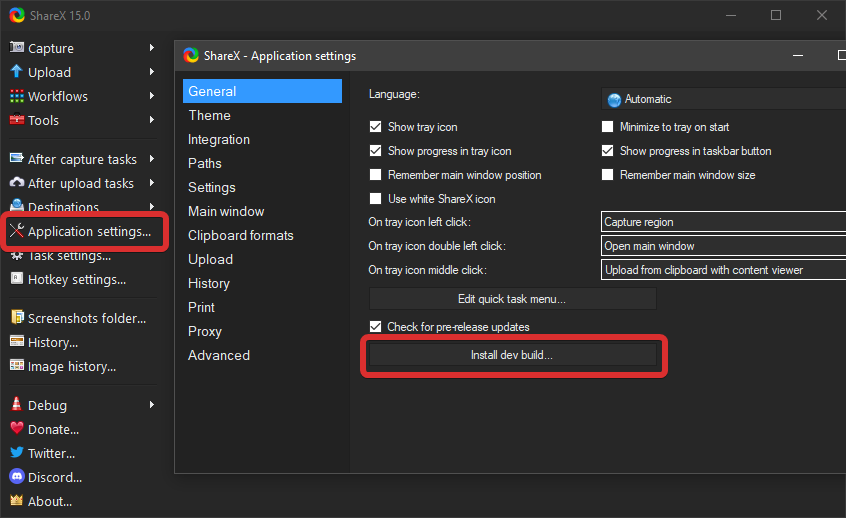
Real interface shots from the images/ folder: tools, dev builds, color picker, and more.
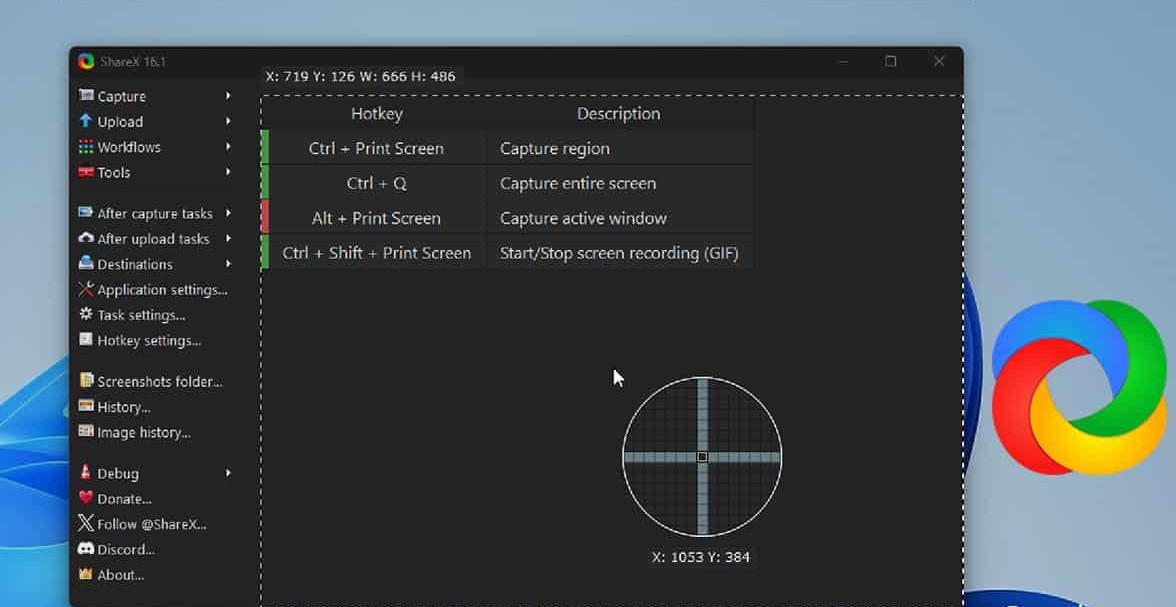
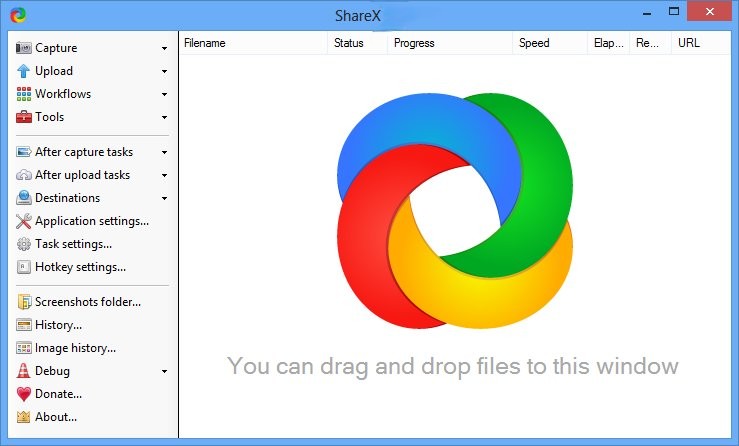

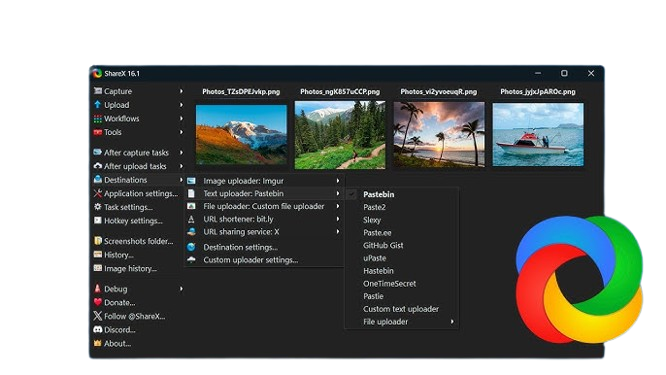
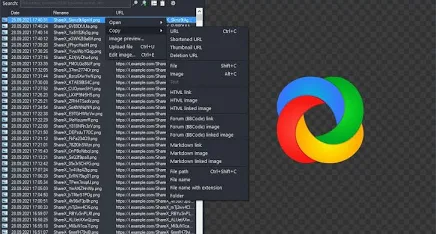
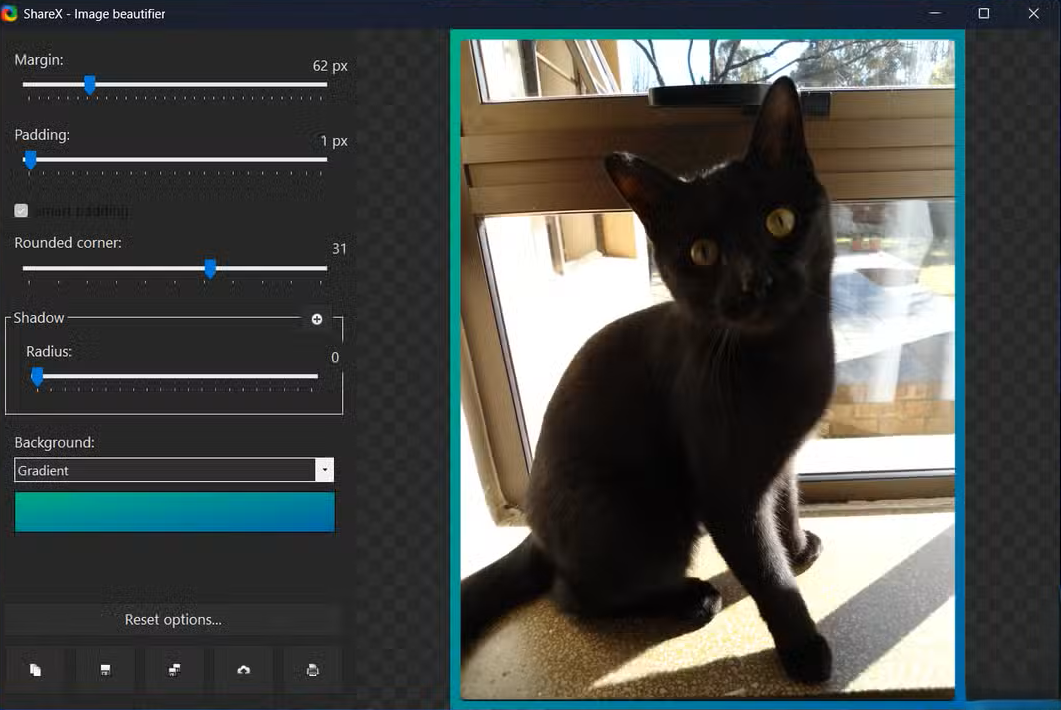
The list below is not exhaustive — check release notes from wherever you obtain ShareX for version-by-version detail.
Choosing the right mode saves time and keeps files consistent — especially when your team shares screenshots in tickets or design reviews.
For software issues, a tight region plus a short screen recording often beats a wall of text. Many developers bind region capture to a single key, then let ShareX upload and paste the URL straight into their issue tracker or Jira.
Technical writers and support staff use scrolling capture to archive entire articles or long threads. If a site uses heavy animations, try slowing scroll speed in settings or capture in smaller chunks — that pattern shows up often in community threads.
Intermittent glitches are hard to explain. A 5–15 second GIF or MP4 from ShareX can eliminate back-and-forth and is usually smaller than a phone video of a monitor.
ShareX supports many built-in uploaders and “custom uploader” definitions so you can push files to your own infrastructure or CDNs.
If you run a private file API, use ShareX’s Custom uploader editor and in-app guidance. Test with a tiny PNG first; once the response template is correct, the same workflow scales to screen recordings.
Patterns below are distilled from common community discussions (Reddit, Discord, forums). Your mileage varies with hardware, GPU drivers, and Windows settings.
Pick a single capture type, one destination, and one after-capture task (for example: region → upload → copy URL). Master that before enabling ten hotkeys you will not remember.
If you switch between employer accounts and personal hosting, export settings when they work and keep a backup JSON — it saves hours when you reinstall Windows or move machines.
Support staff often OCR error dialogs or license keys from screenshots. Combine with “copy text to clipboard” style steps to paste into tickets without retyping.
Bleeding-edge builds can solve a specific bug but may introduce others. Read any notes shipped with pre-release builds before adopting them on a primary workstation.
These are frequent “first checks” when something breaks after an update or driver change.
Open hotkey settings and avoid common game bindings (F keys, Ctrl+Shift combos). Some users scope ShareX to only fire when no fullscreen game is focused, or pause ShareX temporarily from the tray icon.
Regenerate API keys for the destination, confirm the system clock is correct, and re-test with a small file. For S3-compatible providers, double-check bucket policy, region endpoint, and signature version requirements in the provider’s docs.
Multi-monitor setups with mixed scaling sometimes need capture method tweaks. Update GPU drivers, try running ShareX as normal user (not unnecessary elevation), and search community threads for your GPU vendor plus ShareX — workarounds are often documented per driver generation.
Sites with parallax, sticky headers, or lazy-loaded images confuse automatic stitching. Try slower scroll speed, capture a shorter region, or use classic full-page methods (PDF print) for that specific site.
Yes. ShareX is free and open source (GNU GPL). You can also support the project through donations or by helping with translations and documentation wherever the project publishes those options.
Download only from sources you trust. Review the publisher’s privacy policy before installing and avoid untrusted “mirror” installers.
ShareX targets Windows. Other platforms have different tooling ecosystems; the app’s feature set assumes Windows APIs for capture and shell integration.
Download buttons go to the official ShareX page on getsharex.com and to GitHub releases. This site does not host the installer.
More ShareX UI shots: see the Gallery section on this site.
Extended reference
The sections below expand far beyond the summary at the top of this page. Skim the table of contents, jump to what matters, and treat this as a long-form companion for Windows capture workflows — not a substitute for in-app help or your own security review.
Engineers often start with region capture bound to one key, then add “copy link to clipboard” after upload for tickets. Short GIFs beat paragraphs when UI timing matters. Keep one profile for work and export JSON before OS reinstalls.
For code, consider whether screenshots should include file paths or secrets — crop aggressively. Pair ShareX with your issue tracker’s conventions (naming, attachment limits).
Repro steps love numbered screenshots plus a screen recording for flaky flows. Use delay capture when menus disappear on focus loss. Document expected vs actual in the same ticket thread.
If you file dozens of bugs a week, standardize aspect ratio and cursor visibility so designers scan faster.
OCR on error dialogs saves retyping serial numbers and codes. Redact PII before sending externally. Build a personal snippet library of “good” example captures new agents can mimic.
For chat-heavy support, scrolling capture can archive long threads — watch file size before emailing.
Highlight steps with consistent framing so slides stay readable. Record short clips instead of hour-long dumps; students drop off. Check copyright when capturing third-party sites for slides.
Accessibility: prefer large UI text in demos and describe visuals aloud if you share only images.
Before/after comparisons are easier when crop windows match. Use lossless PNG for crisp UI; compress later for Slack if needed. Annotate outside the screenshot when possible to keep source clean.
Social crops differ from documentation crops — maintain separate presets if ShareX supports image effects or post-processing. Keep brand colors consistent when adding borders.
| Format | Good for | Watch out |
|---|---|---|
| PNG | UI, crisp lines, transparency | Large files for photos |
| JPEG | Photos, smaller attachments | Compression artifacts on text |
| GIF | Short loops, embedded in docs | 256 colors, heavy for long clips |
| WebM / MP4 | Motion, narrated flows | Playback support in target tool |
This checklist is educational; your legal, security, and compliance teams override any blog-style advice.
Screen recording competes with games and IDEs for GPU/CPU. Closing background browser tabs sometimes stabilizes frame times. NVMe disks help when writing large video temp files. RAM matters for long scrolling captures. External 4K displays plus mixed scaling multiply edge cases — test capture methods after display topology changes.
Keyboard-heavy users benefit from consistent, memorable shortcuts — document them on an index card until muscle memory sticks. For viewers: add alt text when posting screenshots to platforms that support it. High-contrast themes in captured apps improve readability for everyone. Take breaks; rapid capture work is surprisingly taxing on wrists and eyes.
Run a 30-minute internal workshop: five-minute demo of region vs window, five minutes on history list, ten minutes on “after capture,” ten minutes Q&A. Provide a one-page PDF of hotkeys. Have learners capture one benign internal page and one fake “bug” you planted. Iterate curriculum each quarter as Windows updates shift behavior.
Fullscreen exclusive games may block ordinary capture APIs — community wisdom often suggests borderless window mode for tooling compatibility. Anti-cheat software may interfere; respect game terms of service. For streamers, ShareX can complement (not replace) broadcast software for quick clips to Discord.
Normalize where screenshots live: wiki, drive, or ticket attachments. Agree on naming `{YYYYMMDD}-{ticket}-{step}.png`. Run occasional audits for PII in public channels. Celebrate concise visuals in code review — they reduce rework.
Patterns like project_issue_step.png beat Screenshot (37).png in shared drives. Rotate old captures quarterly. Keep “inbox” and “published” folders separate if you curate tutorials.
Zoom the source UI before OCR when text is small. Prefer high contrast. For tables, OCR may jumble columns — capture wider context or transcribe manually. Languages: verify the engine matches the document alphabet.
GIF shines for under-15-second UI loops embedded in README files. Video fits narrated walkthroughs and variable frame rates. Consider audio: mute default mic if office noise leaks. Trim dead air in post when file size matters.
Chaining “copy image to clipboard” with paste in Figma, Slack, or email is faster than saving manually — until clipboard managers fight you. Some apps prefer file drops over raw bitmap paste; know your target.
Scenario A. A payroll analyst screenshots an error, OCRs the code, pastes into an internal wiki, and links the image for designers. Time saved: several minutes per ticket, hundreds per year.
Scenario B. A mobile developer captures mixed-DPI Android emulator windows, crops consistently, and attaches to a regression doc. Reviewers approve faster.
Scenario C. A moderator archives a volatile forum thread via scrolling capture before deletion policy kicks in — legal reviews the archive offline.
Regulated industries: map where images rest (disk, RAM, cloud). Data retention schedules may apply. Attorney-client privilege contexts may forbid certain uploads altogether. When in doubt, capture locally and let counsel approve distribution.
Video calls: be careful capturing others’ faces or home backgrounds without consent. Prefer sharing application windows only. VPN latency can slow uploads — queue large files for off-peak if polite on corp networks.
125% vs 150% scaling across monitors produces different pixel dimensions. Teach teammates to mention scale settings when reporting “layout bugs.” Region math in tutorials should avoid hard-coded pixel counts.
Corporate proxies sometimes block unknown hosts — test uploaders on corp Wi-Fi before promising a workflow. Retry logic and user-visible errors reduce helpdesk tickets. Consider bandwidth: 4K recordings and hotel Wi-Fi do not mix.
Design reviews involving brand colors may need calibrated displays — screenshots are not a color proof. Night light / f.lux shifts white point; mention if you capture warm-tinted UI.
PrintScreen overrides, game launchers, and IDE chords collide. Maintain a personal cheat sheet. Consider layers: rare tasks on Ctrl+Alt combos, frequent tasks on single function keys if unused.
Disable notification badges in demos. Close unrelated tabs — they distract readers and leak titles. Use single-window captures when possible.
A “good” capture answers: what app, what state, what action, what outcome — without paragraphs. If viewers ask clarifying questions, your crop failed. Iterate.
Rename immediately while context is fresh. Tag in your notes tool. If you upload, verify the link in a private window. Delete scratch captures that contain secrets.
Ask before posting screenshots of private chats. Crop coworker names from informal Slack screenshots when posting publicly. Credit designers if you share their mockups.
Teams sometimes count “tickets closed faster after visual repro policy” — informal surveys beat heavy instrumentation. Do not collect personal data without governance.
Export JSON after you nail a workflow. Store in password manager attachments or encrypted drive. Version-control sanitized configs if your team shares baseline setups — strip secrets first.
Laptop vs desktop: paths in custom tasks may differ — use environment variables where possible. Re-map hotkeys if keyboard layouts change between machines.
ShareX’s ecosystem matured across many Windows generations — behaviors shifted with compositor, HDR, and per-monitor VRR features. Treat old forum posts as hints, not laws; reproduce on your build.
Should I run as administrator? Usually unnecessary; elevation widens blast radius if something goes wrong.
Can I script captures? Many users chain CLI-style invocation with other tools — test on a VM first.
Does dark mode matter? For readability in tickets, yes; for file size, slightly.
What about HDR screenshots? Viewers on SDR displays may see shifted colors — note HDR in ticket text.
You do not need to read top to bottom. Pick a role section, adopt one playbook item this week, then revisit security and naming when you onboard teammates. Content here is meant to be different from the short summaries above: longer, more varied, and opinionated in a practical sense — still not official guidance from any vendor.